Why assistants stopped being text-only
You’ve probably had the experience: you paste a screenshot of an error, a photo of a damaged part, or a scanned form into a chat, and then end up retyping what the assistant can’t “see.” Text-only assistants were built around a narrow input channel, so they work best when the problem is already neatly described in words. Real work rarely arrives that way. It shows up as a diagram in a slide, a checkbox on a PDF, a label on a device, or a conversation you need to have while your hands are busy.
Assistants stopped being text-only because the bottleneck wasn’t just model intelligence; it was translation effort. When people must convert visuals and speech into text, they lose time, introduce errors, and often omit context that matters. Adding images and voice shifts that burden back to the system, which can speed up diagnosis, reduce back-and-forth, and make the assistant usable in settings where typing is awkward.
Capturing audio or images can increase latency, raise costs per request, and expand privacy exposure if sensitive content is included by default. The value is highest when the “source of truth” is inherently non-textual—and when you can control what gets captured, stored, and sent.
What “multimodal” means when you’re actually using it
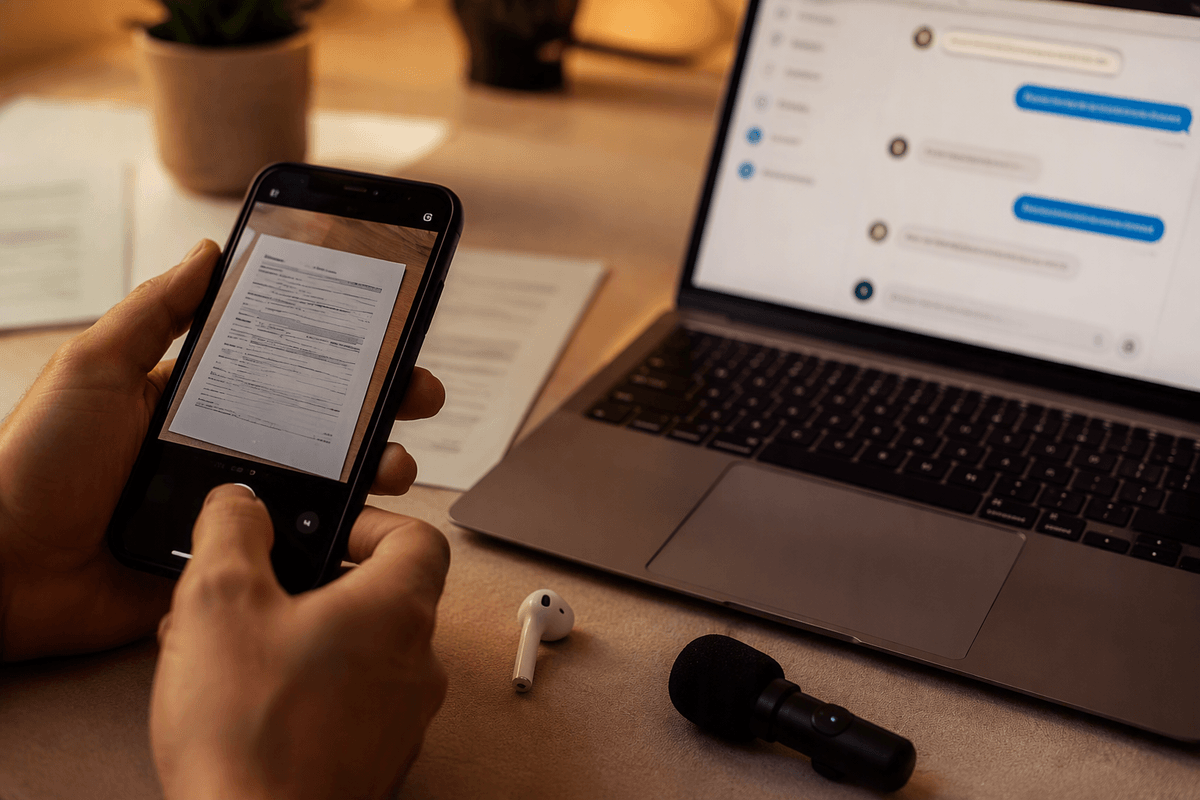
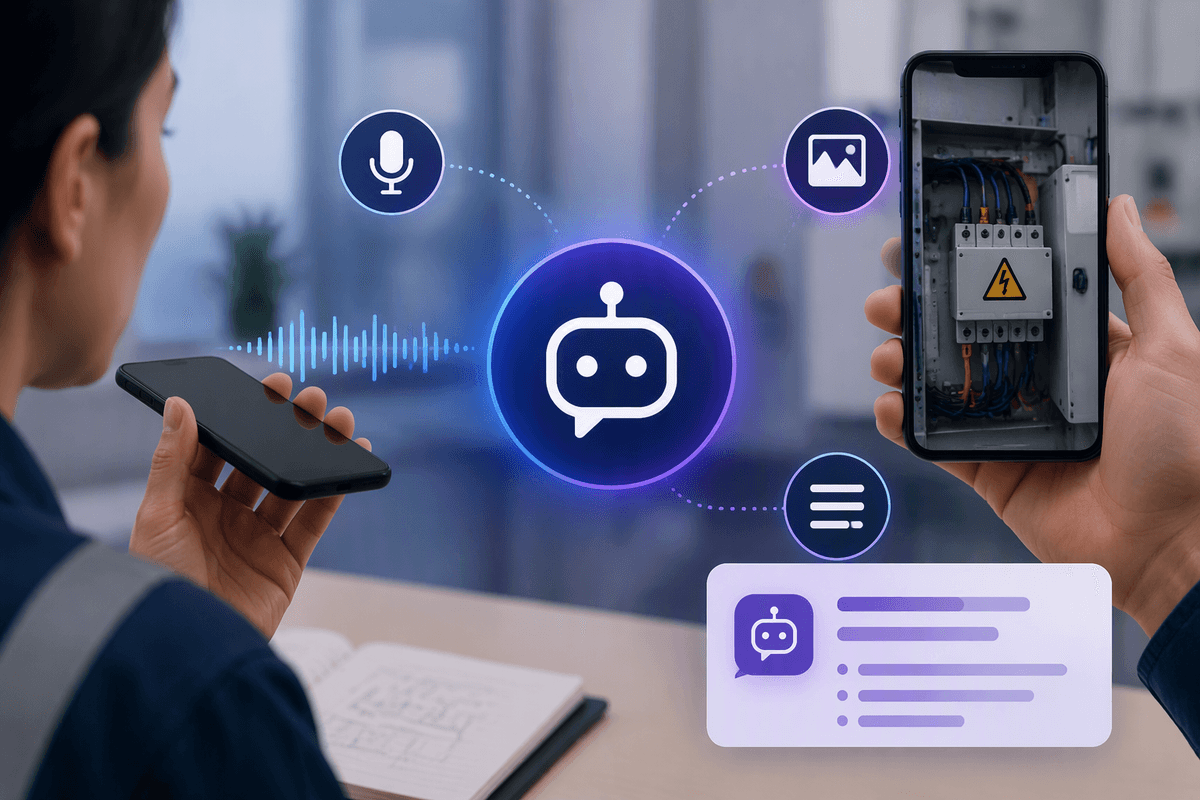
You’ll recognize “multimodal” when the assistant can take whatever you already have—an image, a spoken question, a short video clip, plus your text—and treat it as the same conversation rather than separate tools. In practice, that means you can ask, “What does this error dialog imply?” while attaching a screenshot, or “Read the key fields in this photo of a form,” and then immediately follow with, “Draft a reply email using those details.” The modes work together: the image supplies context, text pins down intent, and voice keeps the interaction moving when you’re away from a keyboard.
The important detail is that multimodal isn’t magic; it’s a routing and interpretation layer. The system decides what to extract (OCR text, objects, layout, speaker intent) and what to ignore. Failures often come from that step: blurry photos, domain-specific symbols, accents, background noise, or missing metadata. You also pay for it—uploads add latency, and sending raw screenshots or audio can expose more sensitive information than you intended.
Workflows where text, images, and voice beat text alone
A familiar pattern is the “tell me what you see, then tell me what to do” workflow. In IT support, a screenshot of an access-denied popup plus a short voice description lets the assistant map the exact dialog to known causes, then generate a step-by-step fix and a message to send to the help desk. In operations and facilities work, a phone photo of a serial label, control panel, or damaged packaging can be turned into an ordered parts list, a draft incident ticket, and a checklist for safe handling—without someone transcribing tiny text.
Documents and slides are another high-leverage case because meaning lives in layout. A multimodal assistant can pull key fields from a scanned form, reconcile them against a policy paragraph you paste in, and flag mismatches. For leaders, voice works when you’re moving: dictate a meeting recap, attach a whiteboard photo, and get action items with owners and dates. The limits are practical: photos must be legible, audio needs quiet, and you still want a human to verify anything that triggers spend, access changes, or external communication.
Designing the interaction: when to ask for which mode
In a good multimodal assistant, you don’t “choose a mode” up front; the interaction nudges you toward the cheapest, fastest input that still preserves truth. If the user is already staring at the source of the problem—an error dialog, a label, a diagram—asking for a screenshot or photo is usually better than asking them to describe it. If the user is walking between meetings or looking at equipment with gloved hands, voice is the right default, with the assistant converting it into structured notes and clarifying questions.
Text still does the heavy lifting for intent and control. Use it to confirm what decision is being made (“draft a ticket vs. change access”), to capture exact constraints (deadlines, part numbers, policy clauses), and to require verification before any high-impact action. A practical pattern is “capture → extract → confirm”: take the image/audio, extract fields, then show a short checklist the user can correct. The cost is friction and latency—uploads take time, and users will abandon flows that demand three attachments when one sentence would have worked.
Picking the stack: models, latency, devices, and cost
The first stack choice is whether you want one general multimodal model to handle everything, or a pipeline of specialists (speech-to-text, OCR, vision extraction, then a text model). The “one model” route is simpler to build and maintain, but it can be harder to control: you may pay premium rates even when a cheap OCR pass would do, and debugging errors can feel opaque. A pipelined approach adds integration work, yet it lets you cap costs and swap components as needs change.
Latency is usually the deciding constraint. Image uploads, audio streaming, and on-device capture can dominate response time more than the model itself. If your assistant is used in the field, design for weak connectivity: compress images, allow “send later,” and consider on-device speech recognition for responsiveness. For office workflows, you can trade a slower response for better extraction quality, but only if the UI makes progress visible.
Cost planning should be concrete: measure average attachment size, expected turns per task, and how often you can fall back to text-only. The biggest hidden expense is retries—blurry photos, noisy audio, and repeated clarifications inflate usage quickly.
Quality, safety, and privacy pitfalls unique to multimodal
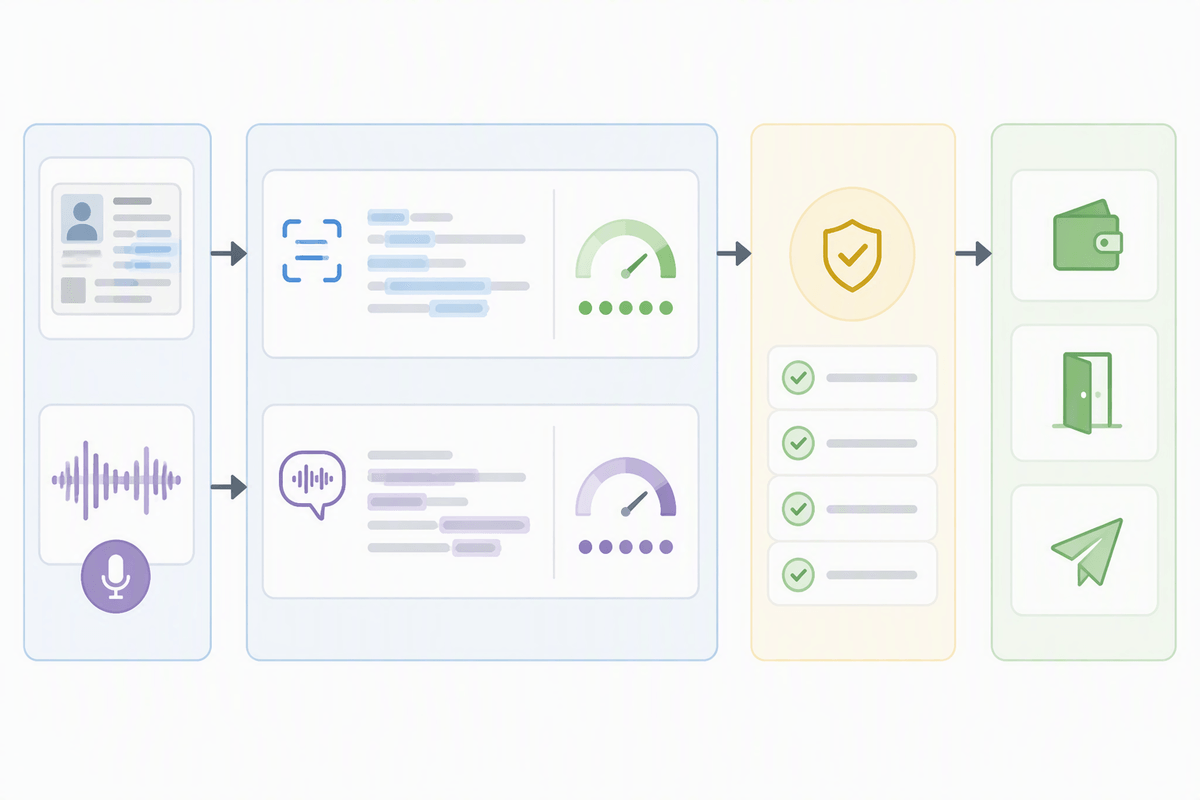
You’ll see quality issues first in the “perception” step, not the reasoning step. A model can sound confident while misreading a single digit on a serial label, skipping a “not” in a warning banner, or confusing similar UI states (disabled vs. grayed out). Audio adds its own failure modes: background talk, speaker overlap, and accents can shift a critical detail (“fifteen” vs. “fifty”), and the downstream summary may silently normalize uncertainty into a crisp statement. The practical fix is boring but effective: force field-level confidence checks, highlight extracted text back to the user, and require confirmation before anything triggers spend, access changes, or outbound messages.
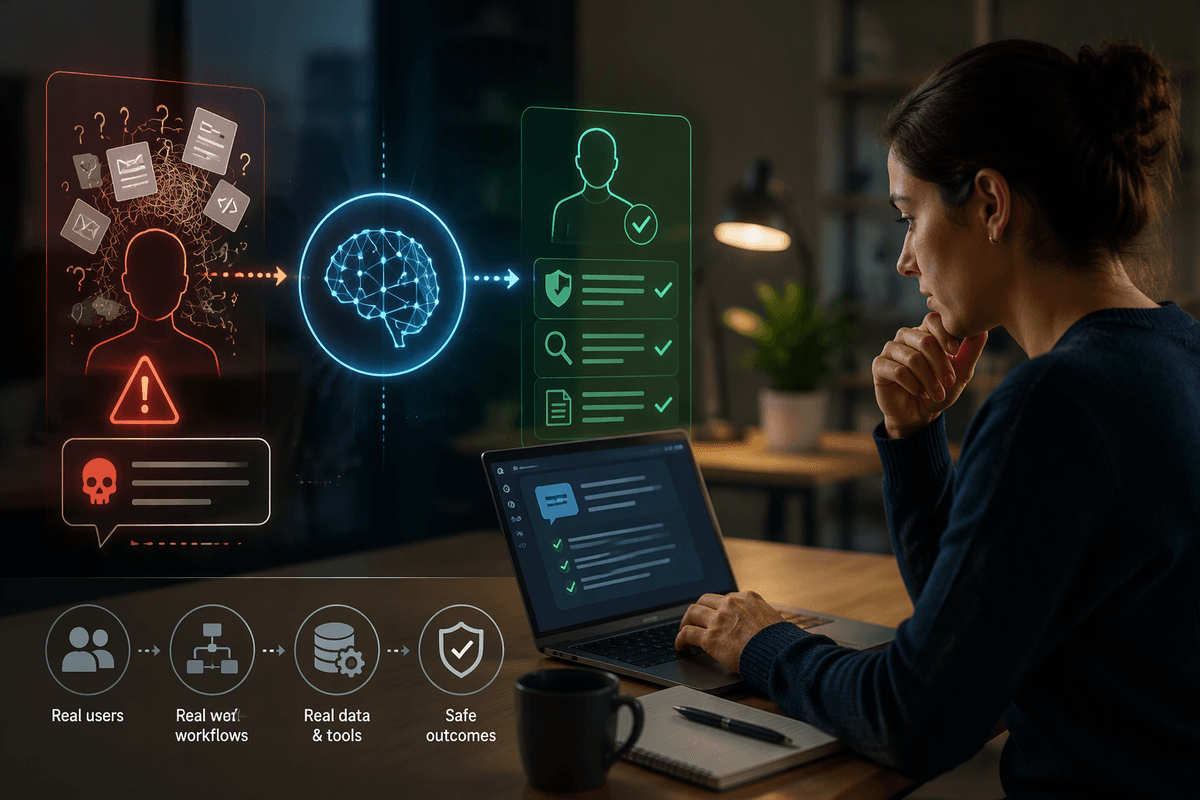
Safety and privacy risks also widen because images and voice carry more than the user intends. Screenshots can include customer data, internal URLs, MFA prompts, or other apps in the background; audio can capture names, health details, or bystanders who didn’t consent. Treat attachments as sensitive by default: minimize what you capture (crop/blur tools), limit retention, avoid training on user media unless explicitly opted in, and log only the structured outputs you truly need for audit and support.
A realistic first rollout plan for a multimodal assistant
A common starting point is a “read and draft” assistant for one workflow you already measure: support tickets from screenshots, invoice intake from scans, or meeting follow-ups from voice plus a whiteboard photo. Keep the scope narrow and the output non-destructive: extract fields, propose a response, and generate a checklist—then require the user to confirm before anything is submitted or sent. Instrument the basics from day one: attachment failure rate (blurry, cut off), average turnaround time, retry loops, and which fields get corrected most.
Roll out to a small group with real volume, not a demo-friendly pilot team. Add guardrails that reduce risk without killing adoption: automatic redaction prompts for screenshots, short retention windows for media, and a “no attachments” fallback when privacy or bandwidth is tight. Budget for the unglamorous costs—UI work for cropping and review, storage and access controls, and human time to spot-check outputs until you have error rates you can live with.